AI connector
Thema in Claude and ChatGPT
Claude or ChatGPT processes the data you give it, and Thema does the calculation. Just say "I am doing some research, find the dates of those events and save their charts to Thema". The assistant finds the dates and places, Thema calculates each chart and saves it to your library. The connector is open to everyone with a free sirauysal.com account.
https://sirauysal.com/mcp
Where the real value is
Claude and ChatGPT are good at reading text, organizing scattered information, looking up sources and carrying out a task in several steps. They are not reliable at calculating planetary positions. The connector combines the two. The assistant processes the data you give it and plans the work. Every calculation comes from Thema's engine, and the result is saved to your library. Work that would take hours by hand becomes a single request.
It processes your data
A client's message, a newspaper clipping, an Excel list or research notes. The assistant pulls out dates, times and places and asks you about anything missing or unclear.
Thema does the calculation
From transits to primary directions, from zodiacal releasing to horary: methods you will not find together anywhere else. Positions are never guessed. They come from Thema.
It saves to your library
Charts are saved to Thema with their category and notes and open in the chat as a wheel. The Open in Thema button takes the same chart to Thema.
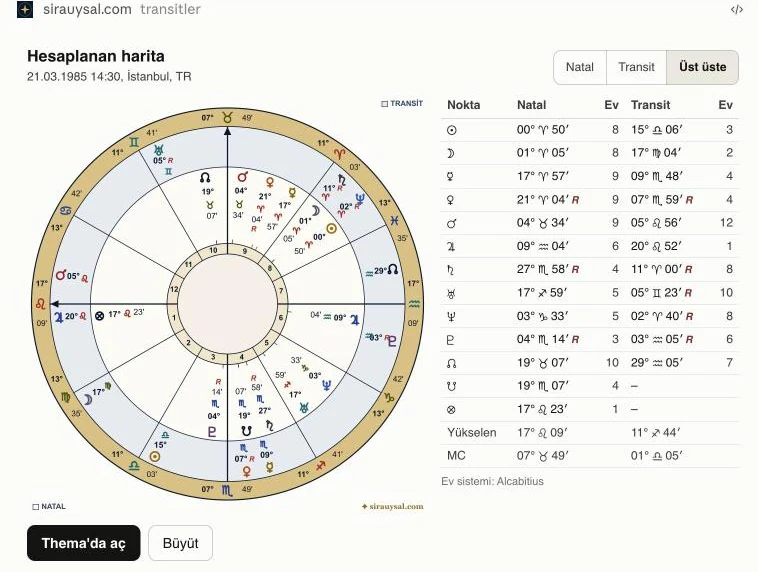
What you can have it do
Write to the assistant in everyday language. Each card shows what you give, what the assistant does and what you get in the end.
-
Research assistant
I am doing some research: find the dates and places of the major earthquakes of the 20th century, calculate an event chart for each one and save them to Thema in an 'Earthquakes' category.
Short version: I am doing some research, find the dates of those events and save their charts to Thema.
- You give
- The research topic. If you like, your own sources (an article, a list, a document).
- It does
- Finds the dates and places from its own knowledge, the chat's web search or the sources you give, and writes the source into each chart's note. An event with an unknown time is saved as "time unknown", never with an invented time.
- You get
- An event chart for each earthquake in an "Earthquakes" category in your Thema library, with source notes.
The AI can make mistakes when it looks up dates and places. For serious research we recommend checking the dates against sources, or giving it the source yourself. The calculation always comes from Thema.
Curious beginners and amateurs
Get to know your own chart and your family, and learn by asking.
-
Calculate my birth chart, save it to Thema and explain which planet is strongest in my chart and why.
- You give
- Your birth date, time and place.
- It does
- Has Thema calculate the chart, looks at dignities and the almuten, and explains it in plain words.
- You get
- A saved chart, a wheel in the chat and an explanation.
-
Here are my mother's, father's and brother's birth details. Save them all in a 'Family' category and look at how my mother's chart and mine fit together.
- You give
- Several people's birth details in everyday language.
- It does
- Separates the details, saves each chart and has Thema compare the two charts (synastry).
- You get
- Charts in a "Family" category and a reading of how the two of you fit together.
-
What are this month's transits triggering in my chart? List the important days in date order.
- You give
- Your saved chart and a date range.
- It does
- Has Thema find the days when transits make exact aspects to your natal chart and picks out the important ones.
- You get
- A transit calendar in date order.
-
What is a profection? Explain it with this year's example from my own chart.
- You give
- The technique you are curious about and your saved chart.
- It does
- Finds the definition in the site's glossary and has Thema calculate this year's profection in your chart.
- You get
- A lesson told through your own chart.
Professional astrologers
For research, client preparation and large libraries.
-
I have an important piece of research: find the Jupiter-Saturn conjunctions, match them with major events in those years, and add the charts of the conjunctions and the events to Thema.
- You give
- The research question and, if you like, a range of years.
- It does
- Has Thema calculate the conjunctions with their triplicities, finds and matches the events, and saves a chart for each moment.
- You get
- Conjunction and event charts and a matching table.
-
Search the art world for people with Venus in Scorpio and add them to my chart list.
- You give
- An astrological criterion and a professional group.
- It does
- Searches the site's database of famous charts, shows the matches and saves them to your library when you confirm.
- You get
- The charts of famous people in Thema, in the category you choose.
-
Extract the dates and places of the events in these newspaper clippings and save an event chart for each one.
- You give
- A photo or the text of the clippings.
- It does
- Reads the text, extracts dates, times and places, asks you about anything unclear and writes "time unknown" when there is no time.
- You get
- An event chart for each event, with a note taken from the clipping.
-
Work out the birth details in this message from my client, calculate the chart and save it.
- You give
- A messy WhatsApp message: "around 3 in the afternoon", a misspelled city name.
- It does
- Reads the time as 15:00 and notes that it is approximate, finds the city with the place search and asks you if there are several candidates.
- You get
- The client's chart in your library with a note about the time.
-
Import the 40 people in this Excel list into Thema and sort them into categories.
- You give
- A table with name, date, time and place columns.
- It does
- Reads the rows, reports missing details, saves the charts in bulk and sorts them into categories.
- You get
- Forty charts in Thema with their categories.
-
Find the clients in my library who have Mars square Saturn and summarize what they have in common.
- You give
- The charts in your library and an astrological criterion.
- It does
- Searches your library with Thema's calculation and reads the notes of the matching charts.
- You get
- A list of matching clients and a summary.
-
Add the events I will use for rectification (marriage, moves, accident dates) as notes to this person's chart, and save charts for the events too.
- You give
- The person's name and the dates of events in their life.
- It does
- Adds the events with their dates to the chart's note and saves a separate chart for each event.
- You get
- A birth chart with notes and event charts, ready for rectification.
-
Look at my client's coming year and draft a plain yearly summary for them.
- You give
- The client's saved chart and the year.
- It does
- Uses Thema's timing techniques together and orders the key periods.
- You get
- A yearly summary draft you can send to your client.
Students
To reinforce what you learn in class. To use your lesson slides and notes, tick "Read my lesson notes and course progress" when you connect. The box appears only on accounts with an active course enrollment, and only the lessons that the portal has opened for you in courses you are enrolled in can be read.
-
Make a 10-question practice quiz for lesson 2 of the Temel Seviye course and check my answers one by one.
- You give
- Your course enrollment and the slides of a lesson that is open in the student portal.
- It does
- Reads the slide text, writes its own practice questions, checks and explains your answers.
- You get
- A practice quiz based on the lesson slides.
-
Look at my course progress and notes, and tell me how many lessons I have completed and which lesson numbers have no notes yet.
- You give
- Your course enrollment and lesson notes.
- It does
- Reads the number of completed lessons and the numbers of the lessons you have notes for.
- You get
- The numbers of the lessons still missing notes.
-
Explain the term 'sect' from class and show whether my chart is a day or a night chart.
- You give
- A term and your saved chart.
- It does
- Finds the definition in the site's glossary and has Thema work out sect in your chart.
- You get
- The term explained with your own chart.
-
For practice, ask me for the ruler of the Ascendant in a famous person's chart and check my answer.
- You give
- The topic you want to practise.
- It does
- Picks a chart from the famous charts database, has Thema calculate it and tests you.
- You get
- Practice on a real chart.
In courses where you are enrolled, the connector reads the title and slide text of the lessons the portal has opened for you, the notes you wrote for your lessons and your course progress. It never reads the questions or answers of the tests and exams in the student portal.
What you need
- A free sirauysal.com account. If you do not have one yet, you can sign up in a few minutes with email and password, Google or Apple.
- A Claude or ChatGPT account. You add the connector once in the app's settings. In ChatGPT the Plus plan is enough. Whether your Claude plan lets you add custom connectors is up to Claude's own plans.
Watch the setup
You can see every step in a one-minute video. Claude's interface in the video is in Turkish.
Nothing loads from YouTube until you press play. The video opens from youtube-nocookie.com.
Setup in Claude
The screenshots show Claude's Turkish interface. The English names of the buttons are written in the steps.
-
Open the Connectors page
In Claude, open Settings and go to Connectors. Press the Add button at the top right and choose Add custom connector.

-
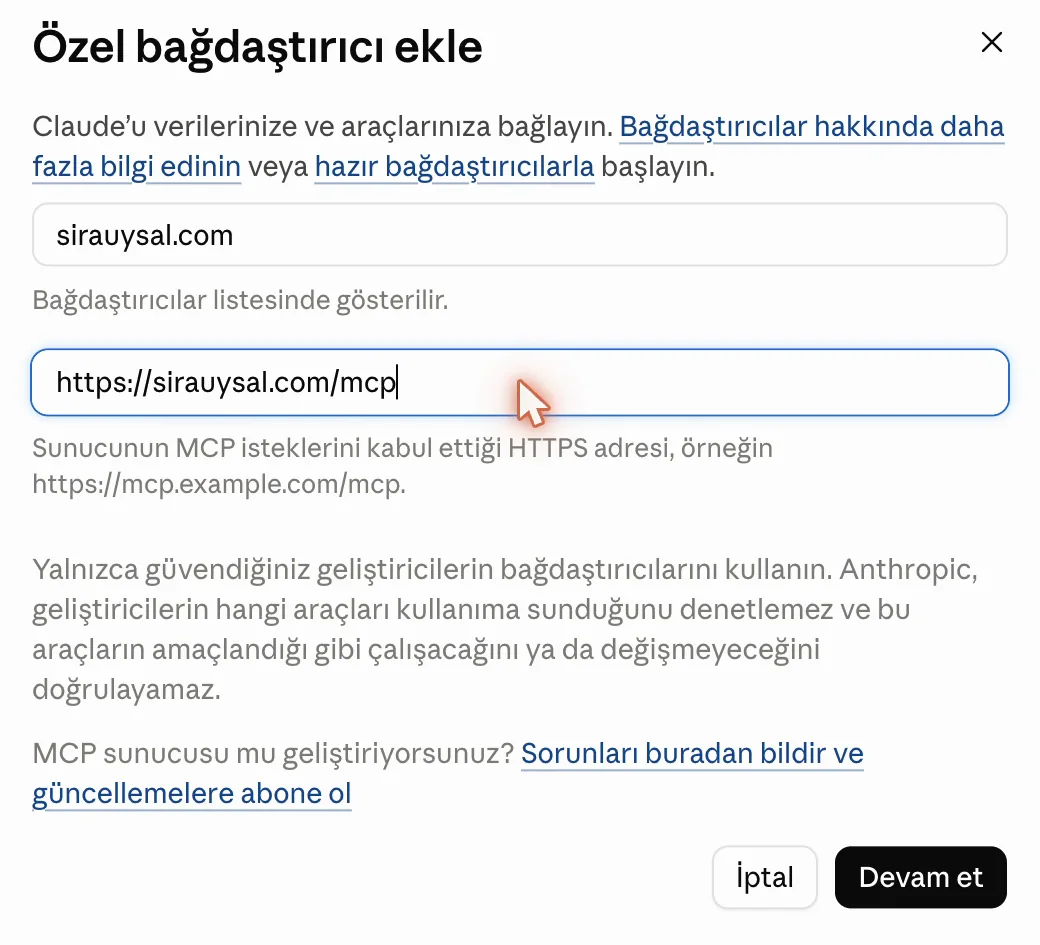
Enter the name and the address
Type these two values into the window and press Continue.
Namesirauysal.comURLhttps://sirauysal.com/mcpLeave the settings on the next screen as they are and press Add.
-
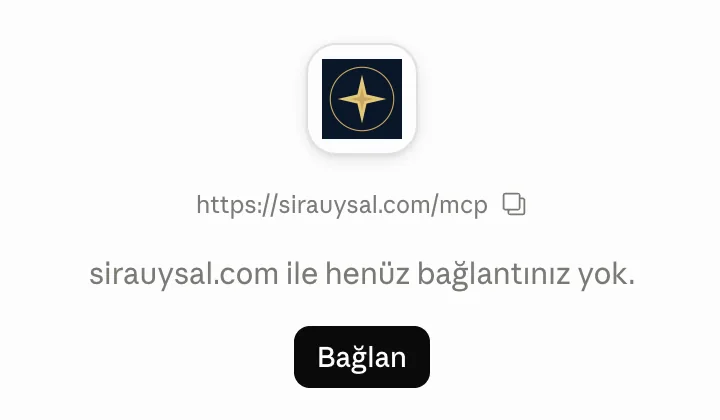
Press Connect
sirauysal.com is added to the list and its page opens. Press Connect.
-
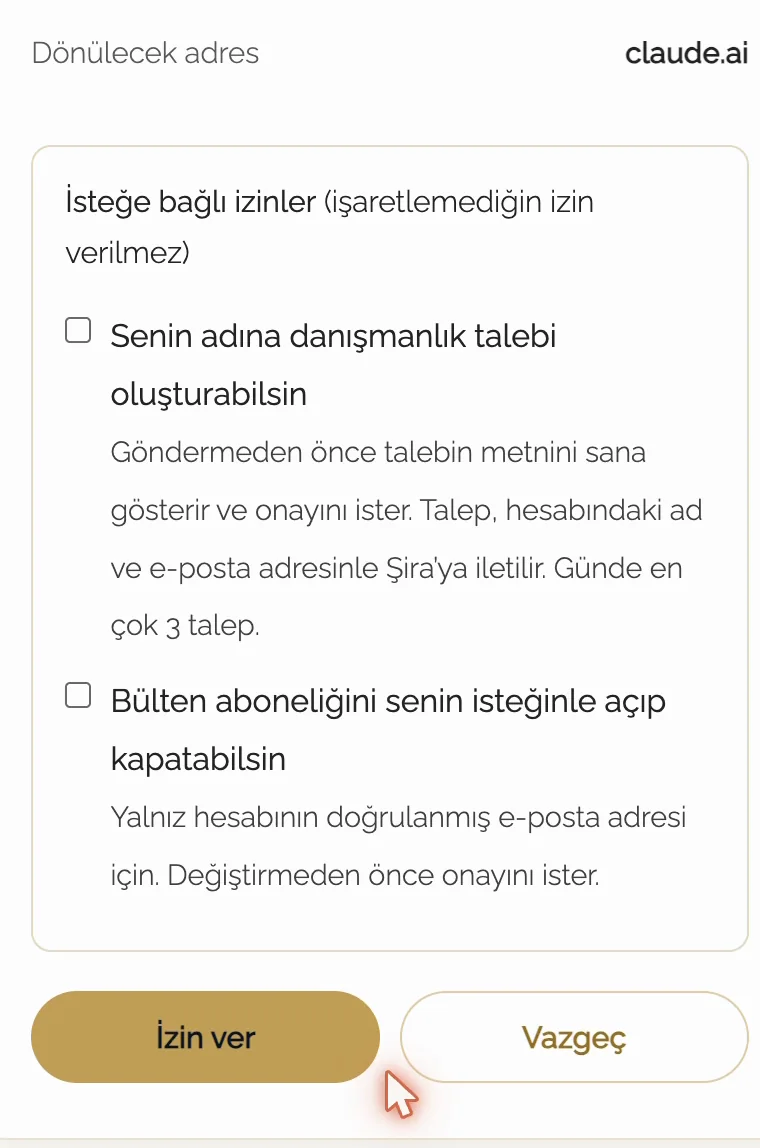
Sign in to sirauysal.com and allow access
The sirauysal.com sign-in page opens. Sign in with your account. The consent screen lists what Claude will be able to do. Optional permissions come unchecked, so leave any box you do not want empty. Press the gold İzin ver (Allow) button and you return to Claude.
If your browser is set to English, the sign-in and consent pages open in English. Your password never goes to Claude. You sign in only on sirauysal.com.
-
Set the tool permissions
The connector's page now shows Tool permissions. In the menu on the Read-only tools row, choose Always allow, so Claude does not ask before every calculation.
For tools that save or change something, we recommend the option that asks for your approval. Claude will then ask you before it saves a chart.
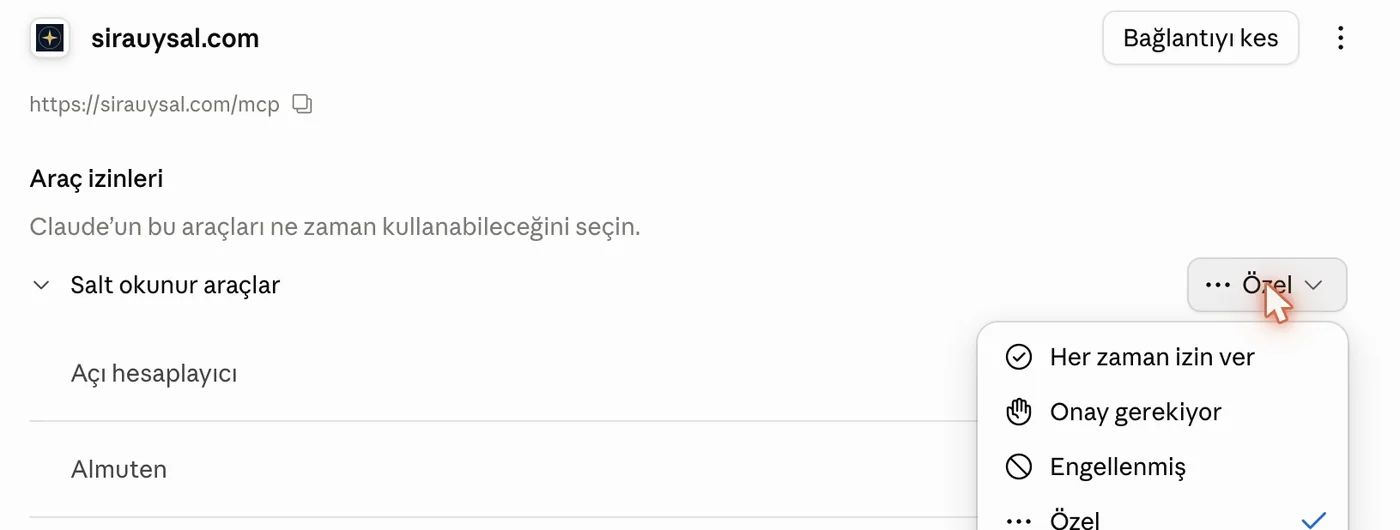


That is all. Open a new chat and ask Claude for a chart.
You add the connector once on claude.ai. With the same account it is expected to appear in Claude's phone and desktop apps too. We have not tested it on a phone ourselves yet.
Setup in ChatGPT
Set it up once on the web at chatgpt.com. After that the connector also works in the ChatGPT phone app, wheel included.
The Plus plan is enough to add the connector in ChatGPT. The screenshots show ChatGPT's Turkish interface, and the steps give the English names in brackets where they differ.
-
Open the apps page
In ChatGPT, open the Eklentiler (apps) page. Press the Ekle (Add) button at the top right and choose Özel MCP sunucusu oluştur (create a custom MCP server).
-
Enter the name and the address
Fill in these two fields. The description is optional.
Namesirauysal.comURLhttps://sirauysal.com/mcpAuthentication is set to OAuth by itself. Leave it, and leave the advanced OAuth settings as they are. Tick the box that says you understand the risk and want to continue, then confirm the form.
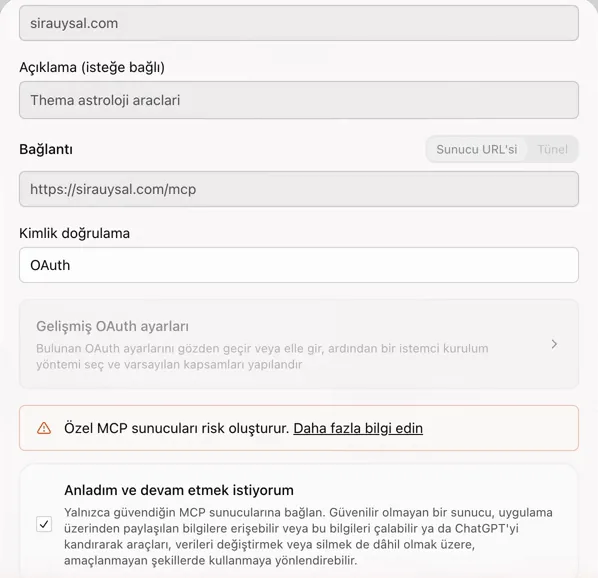
-
Sign in to sirauysal.com and allow access
ChatGPT opens a connection window. Press sirauysal.com ile devam et (continue with sirauysal.com). Sign in with your account on sirauysal.com's own page and press Allow on the consent screen. Your password never goes to ChatGPT.
-
Use it in a chat
sirauysal.com now appears among your installed apps. Press Sohbette dene (try in chat) on its page, or type @sirauysal.com in a new chat followed by your request. Charts open inside the chat as a wheel with a table of positions.
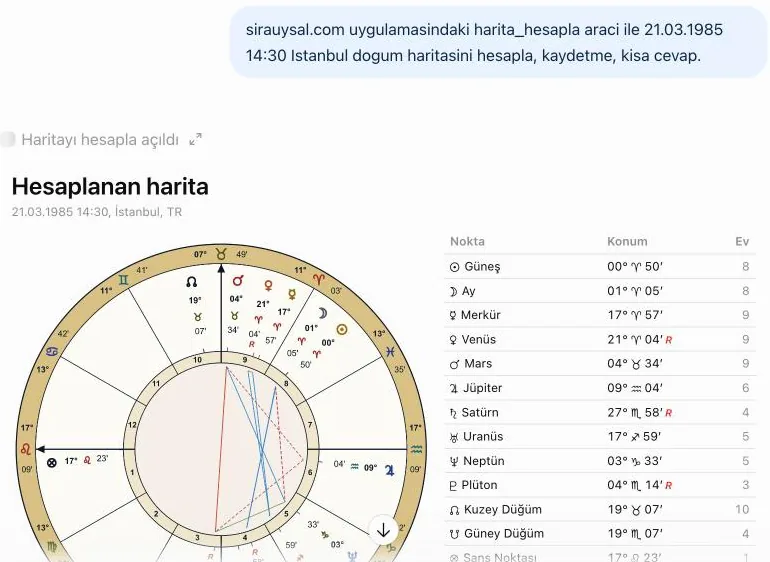
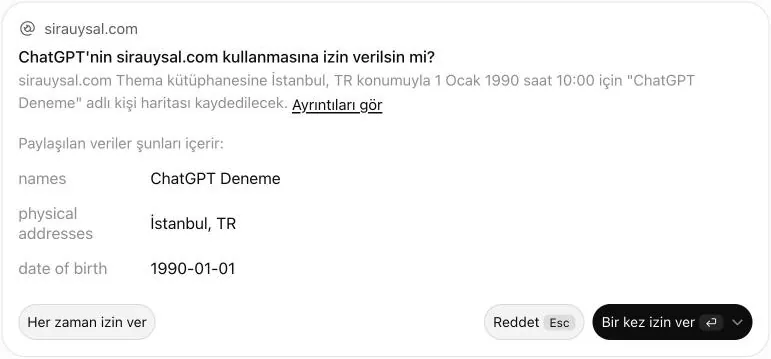
Before anything is saved, changed or deleted, ChatGPT asks you first. You can allow it once or refuse. If you want reading and calculation tools to run without asking, change the permission setting on the app's page.
The "CSP kapalı" (CSP off) label. ChatGPT may show a "CSP off" label in the corner of views that open inside custom apps. It comes from a ChatGPT security setting. We recommend opening Settings, then Security and login, and turning on enforce CSP for custom apps. The wheel keeps working with this setting on, because it loads nothing from outside.
Your data and removing access
- You sign in on sirauysal.com's own page. Your password never goes to Claude, ChatGPT or any other app.
- When the connection is made, a notification arrives at your account's email address. If you did not make it, remove it right away.
- The app can reach only the charts in your own account. Each tool receives only what it needs for the job, such as a chart's name, date, time and place.
- Saved charts are kept only in your account and appear in Thema.
- For security, each tool call is logged: which account, which app, which tool and when. The chart's contents are not part of this log.
- Deleting happens only with your explicit confirmation. A deleted chart is kept for 30 days.
- Tool results go to the app you connected and are processed there under that app's own privacy policy.
- You can remove the connection at any time on the Connected apps page (in Turkish). In Claude you can also use the Disconnect button on the connector's page, and in ChatGPT the settings on the app's page.
For details, see the AI Connection section of the Privacy Policy.
Frequently asked questions
Is there an astrology MCP server for Claude or ChatGPT?
Yes. Thema, the free astrology software on sirauysal.com, connects to Claude and ChatGPT through an MCP server at https://sirauysal.com/mcp. Once connected, you can ask in a chat for a birth chart, transits, secondary progressions, a solar return, a horary chart, primary directions, synastry and classical timing techniques, and the charts are saved to your Thema library. The AI does not guess planetary positions: every calculation comes from Thema's engine. All you need is a free sirauysal.com account (plus at least the Plus plan in ChatGPT). The setup steps are on this page.
Does the connector cost anything?
The connector is free for now. A free sirauysal.com account is enough. On the Claude or ChatGPT side your own plan's terms apply (ChatGPT needs at least Plus).
Which AI apps does it work with?
We have tested it with Claude and ChatGPT, and in both the charts open in the chat as a wheel. Because the connector uses the open MCP standard, it may also work in other apps that let you add a custom MCP server, but we have not tested those yet.
Can the app see all of my charts?
The app looks at your library only when it uses a tool in the chat, and the chat shows which tool it ran. The connection opens only your own account's charts. It cannot reach other members' charts.
Can the app delete or change my charts?
Only if you ask. Before deleting, it has to tell you which chart will be deleted and get your explicit confirmation. A deleted chart is kept for 30 days, and if you write to us within that time we can bring it back.
The wheel does not appear in the chat. What should I do?
The first time, the app may ask for permission to show this view. Allow it. If the wheel still does not appear, press Disconnect on the connector's page in Claude and connect again. In ChatGPT you can remove the app and add it again.
What does the "CSP kapalı" (CSP off) label in ChatGPT mean?
The label comes from ChatGPT's security setting for custom apps. It does not mean anything is wrong with the connector. If you turn on enforce CSP for custom apps under Settings, Security and login in ChatGPT, the label goes away. The wheel keeps working with this setting.
Can I use it on my phone?
Yes. In ChatGPT, set it up once on the web at chatgpt.com. After that it also works in the ChatGPT phone app, wheel included. Older messages you tried on the web may show as grey empty boxes on the phone, but new messages open normally. In Claude, add the connector on claude.ai. It can then be used in Claude's phone app with the same account, although we have not tested this ourselves yet.
Do I need to reconnect when new tools are added?
Usually not. New calculations work with your existing connection. Only when a new kind of permission is added does the consent screen open once more.
How do I remove the connection?
Open the Connected apps page on sirauysal.com and remove the app's access. From that moment it can no longer reach your charts. The charts it saved stay in your library.
Stuck somewhere?
If a step does not go as expected, send us a WhatsApp message and we will look at it together.